Skip to content

Range Bands

Range bands are colored circular overlays that appear around tokens to represent combat distances. Instead of counting squares or measuring exact distances, range bands let you eyeball relative positioning: is that enemy within short range or medium range? Are your allies close enough to be engaged?

This is the approach used by narrative-focused systems like Genesys and the FFG Star Wars RPGs, where distances are described in broad categories rather than precise measurements.

Range band settings are per-map, so all tokens on a map share the same ring configuration. This keeps distances consistent across the entire encounter.

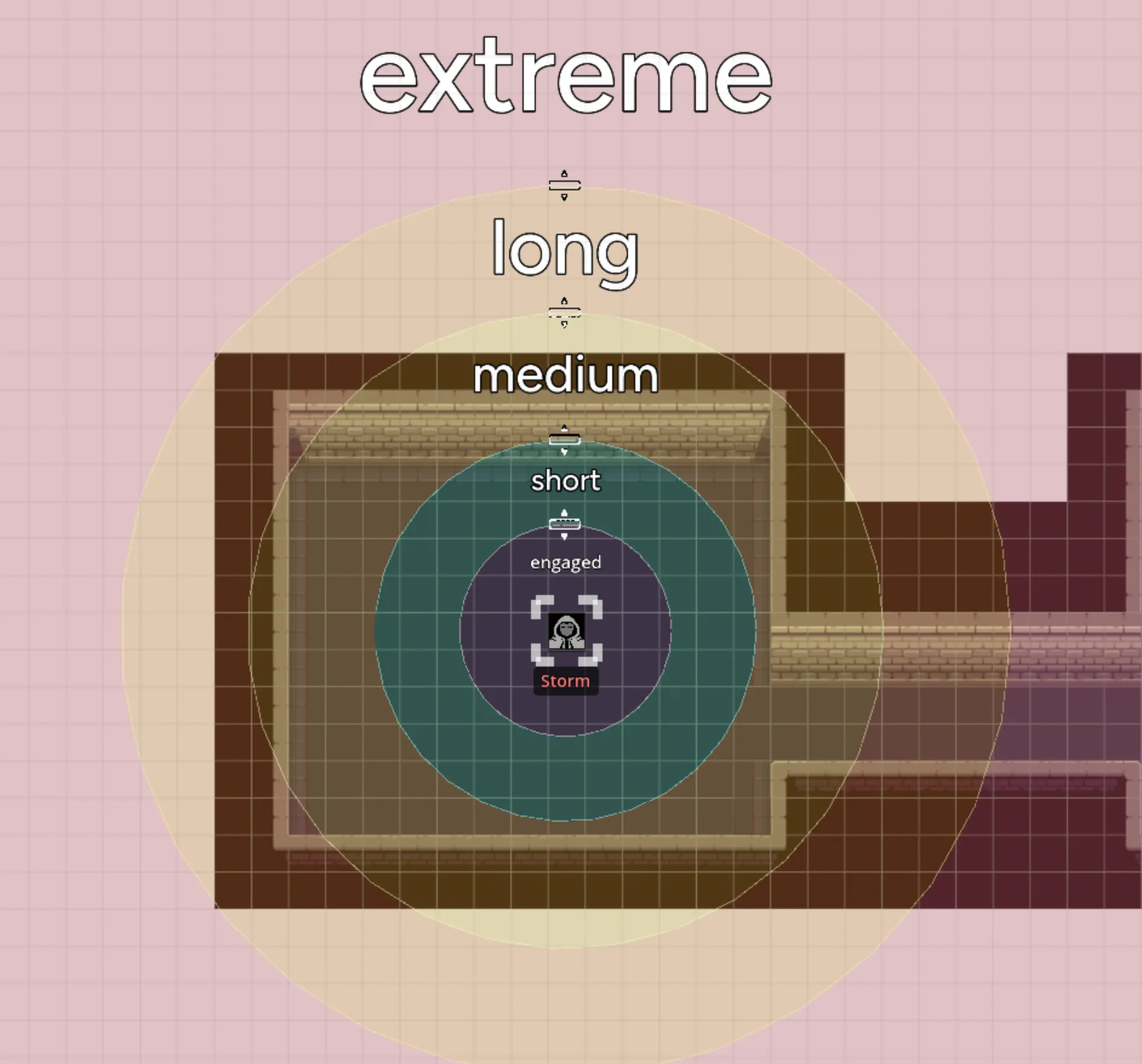
Range bands display as five concentric zones around a token, from innermost to outermost:

ZoneColorDescription
EngagedBlueThe innermost area, melee range
ShortGreenClose combat, thrown weapons
MediumYellowTypical ranged combat
LongOrangeLong-range weapons, distant spells
ExtremeRedMaximum effective range

Range band view

Each zone is semi-transparent so you can still see the map and other tokens underneath. Labels appear within each ring so you can tell at a glance which zone a target is standing in.

To display range bands on a token:

  1. Select a token on the map
  2. Click the Range Band button in the token’s control panel

The range band overlay appears centered on the token. You can enable range bands on multiple tokens, but only the currently selected token’s range bands are visible at a time.

Range band toolbar button


Each ring has a draggable handle that lets you resize it. This is how you calibrate the range bands to match your map’s scale and your system’s distance categories.

Demo of adjusting range bands

When you drag a handle:

  • Dragging the Short ring (the innermost) scales all outer rings proportionally, keeping the relative spacing between zones consistent
  • Dragging an outer ring adjusts that ring and pushes any rings beyond it outward if they would overlap

The rings enforce a minimum spacing between each other so they never collapse into an unreadable mess, and there’s a maximum size limit to prevent rings from extending far beyond the visible map area.

Range band configurations are saved automatically. When you adjust the rings:

  1. The new sizes are saved to the current map page
  2. All connected players see the updated rings in real-time
  3. The configuration persists between sessions

Since range bands are page-level settings, adjusting the rings on one token updates the ring sizes for every token on that page. This means you only need to calibrate once per map page, and all tokens share the same distance scale.

To remove range bands from a token:

  1. Select the token with range bands enabled
  2. Click the Delete Range Bands button in the token’s control panel

This removes the overlay from that token. Other tokens with range bands enabled are unaffected.

Turning off range bands for a single token

Range bands are most useful when your game system uses narrative or abstract distances rather than precise grid-based measurement.

Good fit for range bands:

  • Genesys / FFG Star Wars: These systems define combat ranges as Engaged, Short, Medium, Long, and Extreme, which map directly to the five ring zones
  • Other narrative systems: Any game that describes distance in broad categories rather than exact feet or meters
  • Theater-of-the-mind with a visual aid: When you want a general sense of positioning without the precision of a tactical grid

Better served by the grid:

  • D&D / Pathfinder tactical combat: If your system measures movement in 5ft squares or 1m hexes, the grid system with snapping gives you the precision you need
  • Exact range calculations: When you need to know that an enemy is exactly 30ft away, a grid with cell counting is more reliable

You can have both a grid and range bands active at the same time. Some GMs use the grid for movement and range bands as a quick visual reference for ability ranges or zone effects.

  • Calibrate early in your session. Before combat starts, enable range bands on a token and adjust the rings to match your map’s scale. Once they’re set, every token on the page uses the same configuration.
  • Use the Short ring as your anchor. Since dragging the Short ring scales all others proportionally, start by setting it to whatever “close range” means in your system, then fine-tune the outer rings individually if needed.
  • Combine with fog of war. Range bands respect fog of war visibility. You can use fog to hide parts of the map while still using range bands to gauge distances in the revealed areas.
  • Don’t overthink precision. Range bands are intentionally approximate. They’re a visual guide, not a ruler. If a token is clearly within a ring, it’s in that range category. If it’s right on the border, make a judgment call, that’s the narrative spirit of these systems.