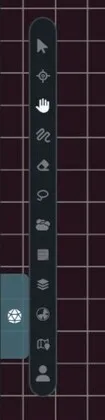
Maps disables keyboard shortcuts while a text field is focused, so typing in a note, search box, or form won’t switch tools.
| Key | Tool | What It Does |
|---|
V | Pointer | Select and move assets |
Z | Resize | Resize the selected assets |
R | Rotate | Rotate the selected assets |
B | Brush | Draw lines and markers |
E | Eraser | Remove drawings |
H | Hand | Pan the map |
L | Lasso | Select several assets with a freeform area |
W | Walls | Open the GM wall tool while dynamic lighting is enabled |
N | Notes | Place a sticky note |
P | Ping | Ping the position under your cursor |
| Shortcut | What It Does |
|---|
P | Ping the current cursor position without changing tools |
Alt + click | Ping a location |
Alt + drag | Draw a temporary tracer path |
You can also select the Ping tool and click the map. The tool returns to Pointer mode after a point ping.
| Shortcut | What It Does |
|---|
Hold Space and drag | Temporarily pan the map |
| Hold middle mouse and drag | Pan without switching tools |
Cmd/Ctrl + = | Zoom in |
Cmd/Ctrl + - | Zoom out |
Cmd/Ctrl + 0 | Reset zoom to 100% |
| Mouse wheel or trackpad gesture | Pan or zoom based on the input device |
| Shortcut | What It Does |
|---|
Cmd/Ctrl + C | Copy selected assets |
Cmd/Ctrl + V | Paste copied assets |
Cmd/Ctrl + Z | Undo |
Cmd/Ctrl + Shift + Z | Redo |
Cmd/Ctrl + Y | Redo on Windows and Linux |
Undo and redo cover common map edits, including movement, drawing, deletion, pasting, fog changes, and wall state changes.
| Shortcut | What It Does |
|---|
Shift + F | Flip the selection horizontally |
Shift + V | Flip the selection vertically |
| Arrow keys | Move the selection one grid cell |
Shift + arrow keys | Move the selection five grid cells |
Hold Shift while dragging | Snap the selection to the grid |
Hold Shift while resizing | Resize in grid-sized steps |
Grid movement and snapping require an active grid.
| Shortcut | What It Does |
|---|
R while placing a marker | Rotate the marker 45 degrees clockwise |
Shift + R while placing a marker | Rotate the marker 45 degrees counter-clockwise |
Hold Shift while drawing a line | Constrain the line angle |
| Shortcut | What It Does |
|---|
Hold Shift while placing a box | Make it a square |
| Right-click while placing | Finish or cancel the current wall placement |
| Right-click while not placing | Remove the wall under the cursor |
| Shortcut | What It Does |
|---|
Escape | Cancel the current action or clear the selection |
When Rotate mode is active, Escape returns to the Pointer tool instead of clearing the selection.
On macOS, use Cmd. On Windows and Linux, use Ctrl.