
Map Management
A game can hold several map pages inside folders. Use the Maps panel to move between locations, prepare future scenes, and keep old maps available without showing them to players.
Open the Maps Panel
Section titled “Open the Maps Panel”Open Maps from the map controls. The panel shows the current folder, its child folders, and its map pages.
Each map card can show:
- A captured preview of the GM view
- The map name
- A Default badge for the game’s starting page
- A Linked badge when the page is connected to a data-library map
- Actions for the library copy, renaming, and deletion
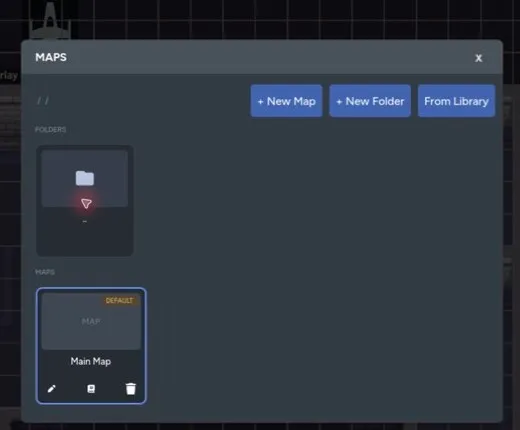
Map thumbnails are for GM navigation. Players don’t receive a screenshot of hidden map content.
Create a Map
Section titled “Create a Map”- Open the destination folder.
- Select + New Map.
- Enter a unique name.
- Select Create.
The new page opens as an empty canvas. Configure its background, grid, layers, fog, and lighting separately from other pages.
Organize Folders
Section titled “Organize Folders”Use folders to group maps by session, location, act, or campaign chapter. You can:
- Create nested folders
- Rename a folder
- Move map pages between folders
- Delete an empty folder
Use the .. card to return to the parent folder.
Switch Pages
Section titled “Switch Pages”Select a map card to open that page. Other players stay on their current page until they switch or the GM summons them.
This lets a GM prepare another map without pulling the table away from the current scene. When the next location is ready, use Summon Players or the Players tab.
Rename a Map
Section titled “Rename a Map”Use the edit action on a map card, enter the new name, and confirm. Map names must be unique within the folder.
Renaming doesn’t change the page’s contents or its data-library link.
Set the Default Page
Section titled “Set the Default Page”Open the page you want players to start on, move the camera to its starting position, then select Set default map & view in Settings.
The map card gets a Default badge. New visitors open on that page and camera position.
Delete a Map
Section titled “Delete a Map”Use the delete action on the map card, then select the armed confirmation before it resets.
Deleting a page removes its placed assets, drawings, fog, walls, clocks, loot drops, and other page content. A saved data-library copy is separate and isn’t deleted with the live page.
Add a Map from Your Library
Section titled “Add a Map from Your Library”Select From Library to search your saved maps and add one to the current game folder. The import creates a new page with the saved layout and converts actor references into relinkable placeholder tokens.
See Maps in the Data Library for saving, importing, updating, and relinking reusable maps.