
Create Sheets
Use Create New in the Library when you want to build an actor or vehicle from scratch. You can add the finished sheet to a game later.
Choose what to create
Section titled “Choose what to create”- Open Library.
- Select Create New.
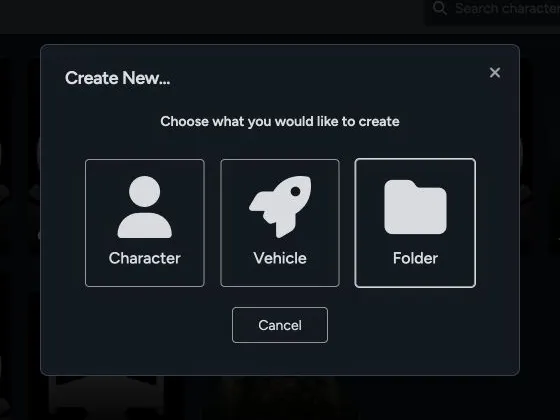
- Choose Character, Vehicle, or Folder.
Create a player character or adversary
Section titled “Create a player character or adversary”Choose Character for both player characters and adversaries.
- Enter the character name.
- Choose the game theme.
- Choose the character type: Player, Minion, Rival, or Nemesis.
- Choose the dice style used by the sheet.
- Configure Force options and optional mechanics when they apply to the theme.
- Review the available automation settings.
- Create the character, then fill in characteristics, skills, equipment, talents, narrative mechanics, and notes.
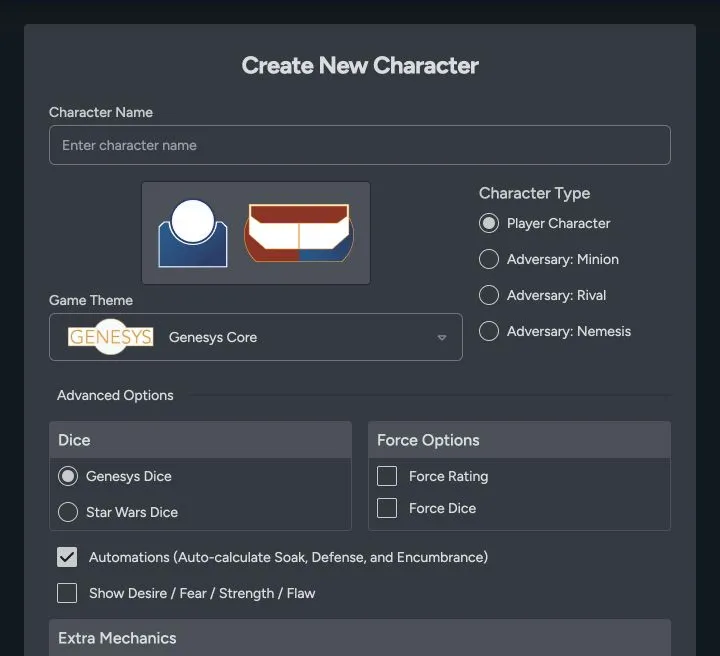
Choose Player for a player sheet. Choose Minion, Rival, or Nemesis for an adversary. The type changes how the sheet handles adversary rules and how that actor works at the Game Table.
Create a vehicle
Section titled “Create a vehicle”- Choose Vehicle from the New dialog.
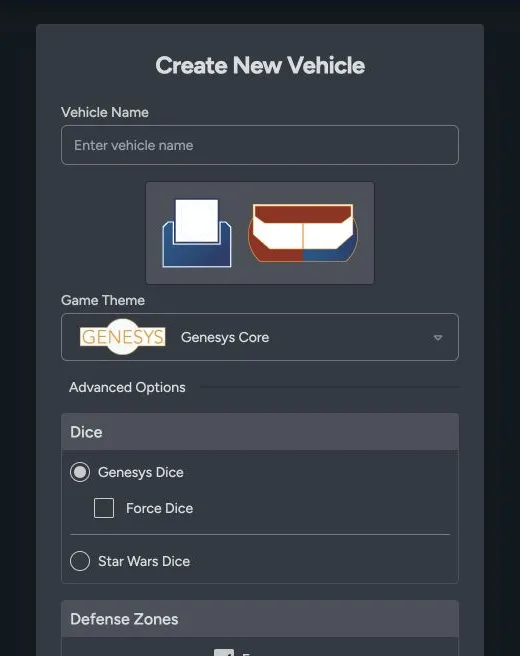
- Enter the vehicle name.
- Choose the game theme and dice style.
- Configure Force dice and defense-zone options when they apply.
- Create the vehicle, then add stats, damage thresholds, weapons, cargo, crew, attachments, vehicle actions, and deck plans.
What to do after creation
Section titled “What to do after creation”- Open the edit control on the sheet to fill in its core values.
- Add reusable equipment or talents from the Data Library.
- Add the sheet to a game when it’s ready for play.
- Use the clone control when a similar actor or vehicle is faster to build from an existing sheet.
If you’ve already built the sheet somewhere else, check Import Sheets before entering it by hand.